How to Use the Exception Widgets
This guide will show you how to use exception widgets to filter results on the tracking page.
1. Navigate to the Tracking page https://app.apc-pli.com/tracking
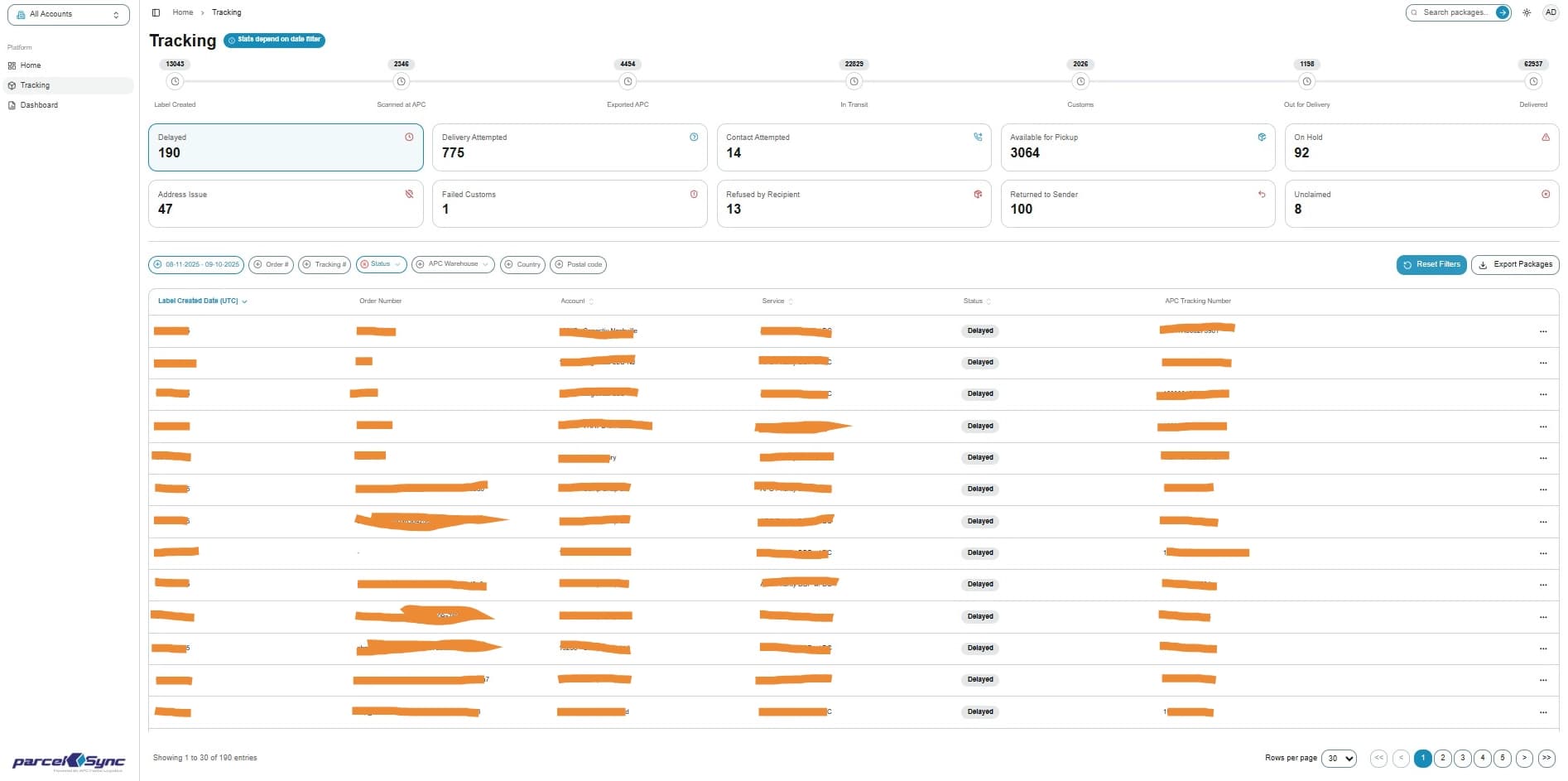
Under the status bar (pizza tracker), you will see exception widgets. These highlight shipments that require attention (i.e. Delayed, Held at Customs, etc)
By default, the Tracking page shows packages with labels created in the Last 30 Days. You can customize the date range to see as far back as Last 60 Days
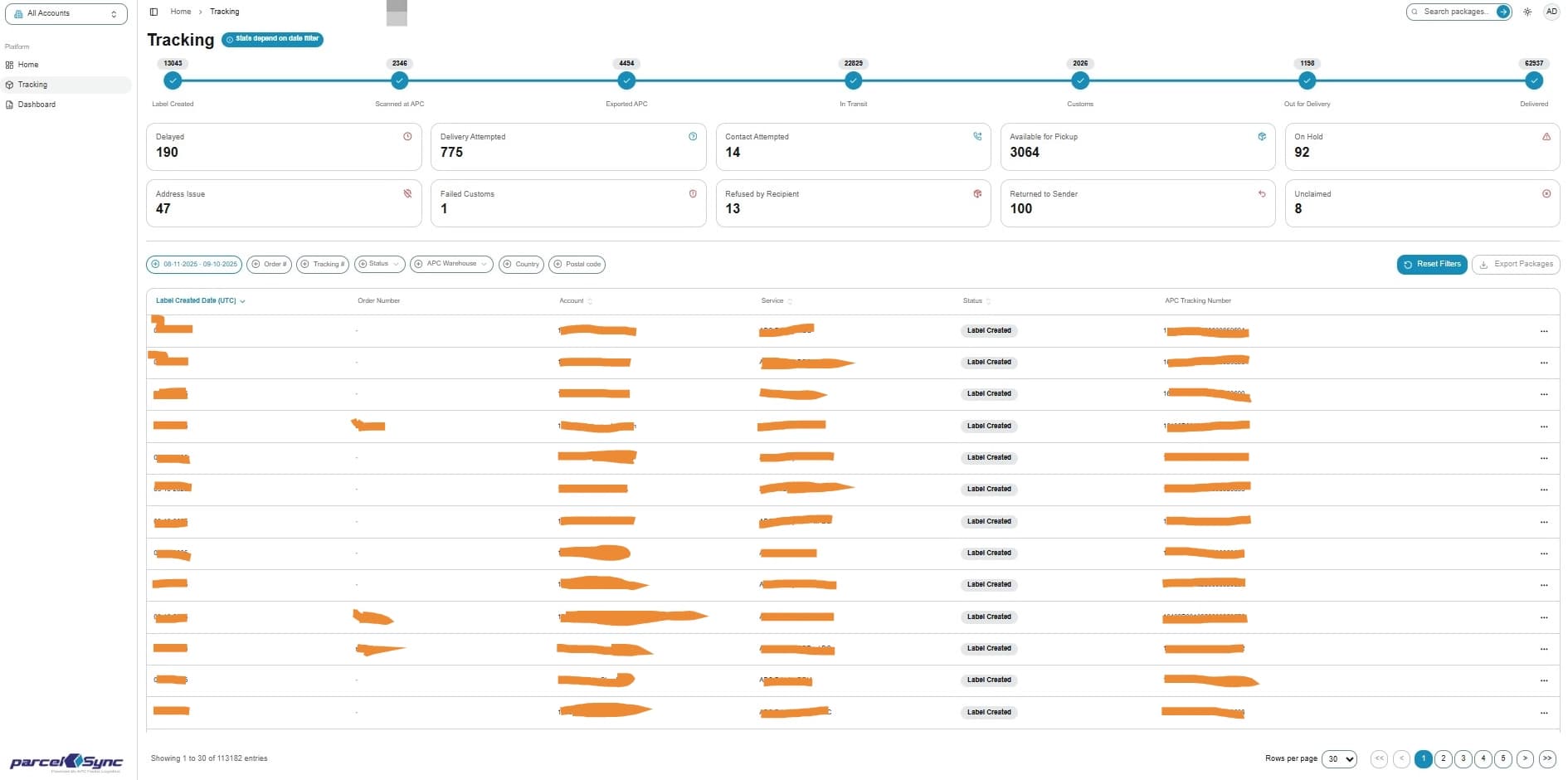
2. Using exception widgets
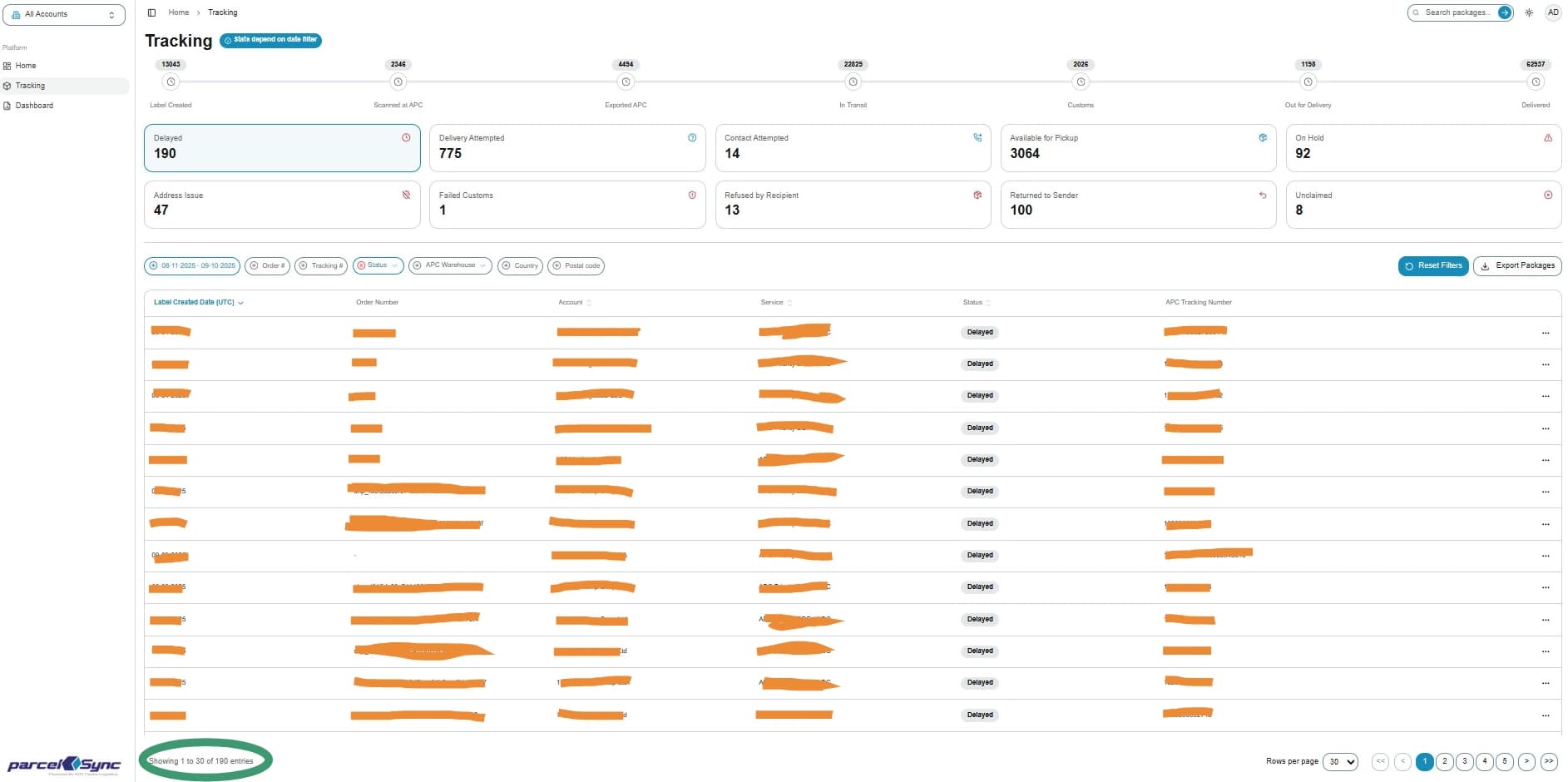
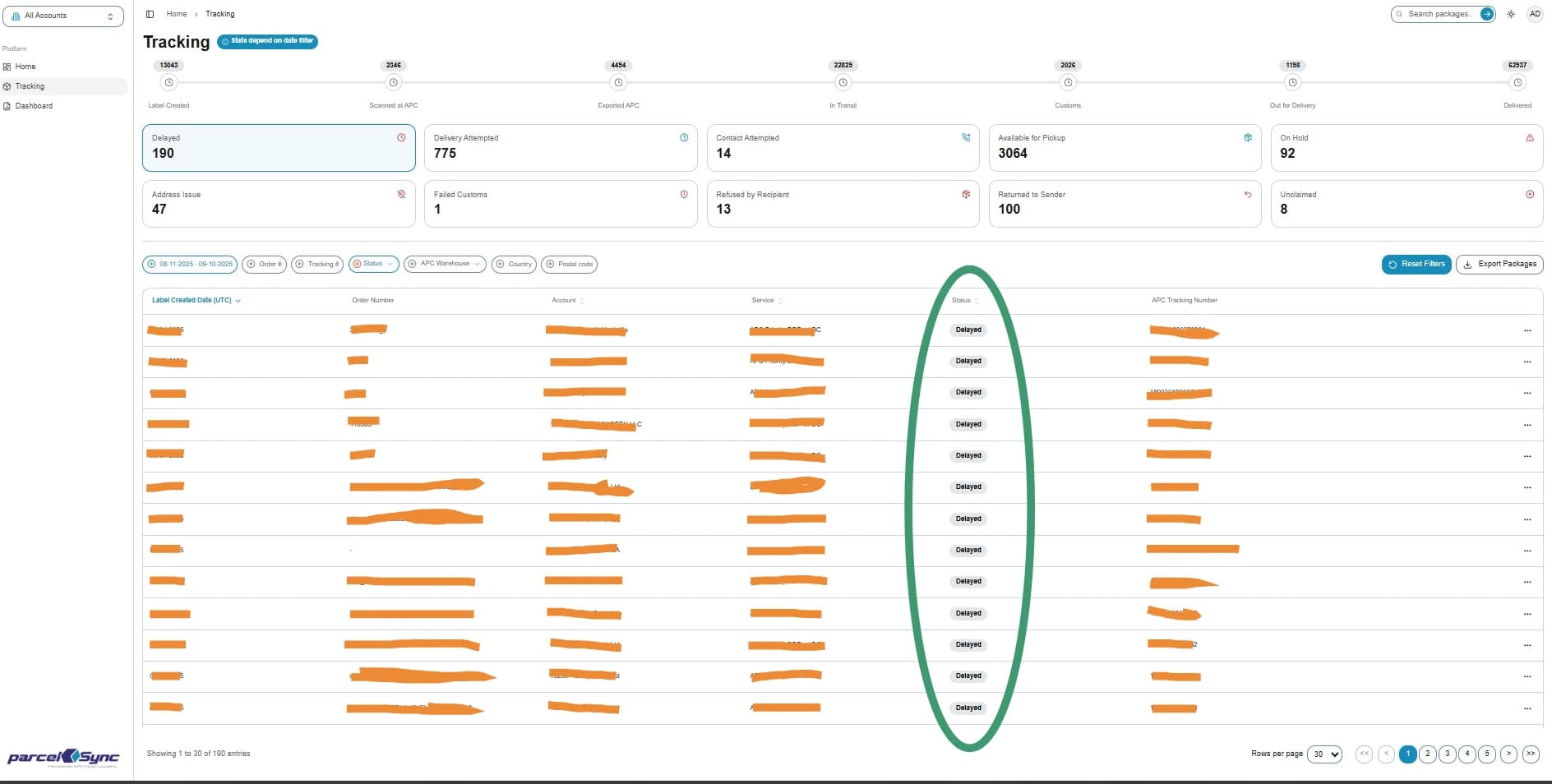
When you click any of the exception widgets, the table updates to show only the packages that currently fall under the selected exception status
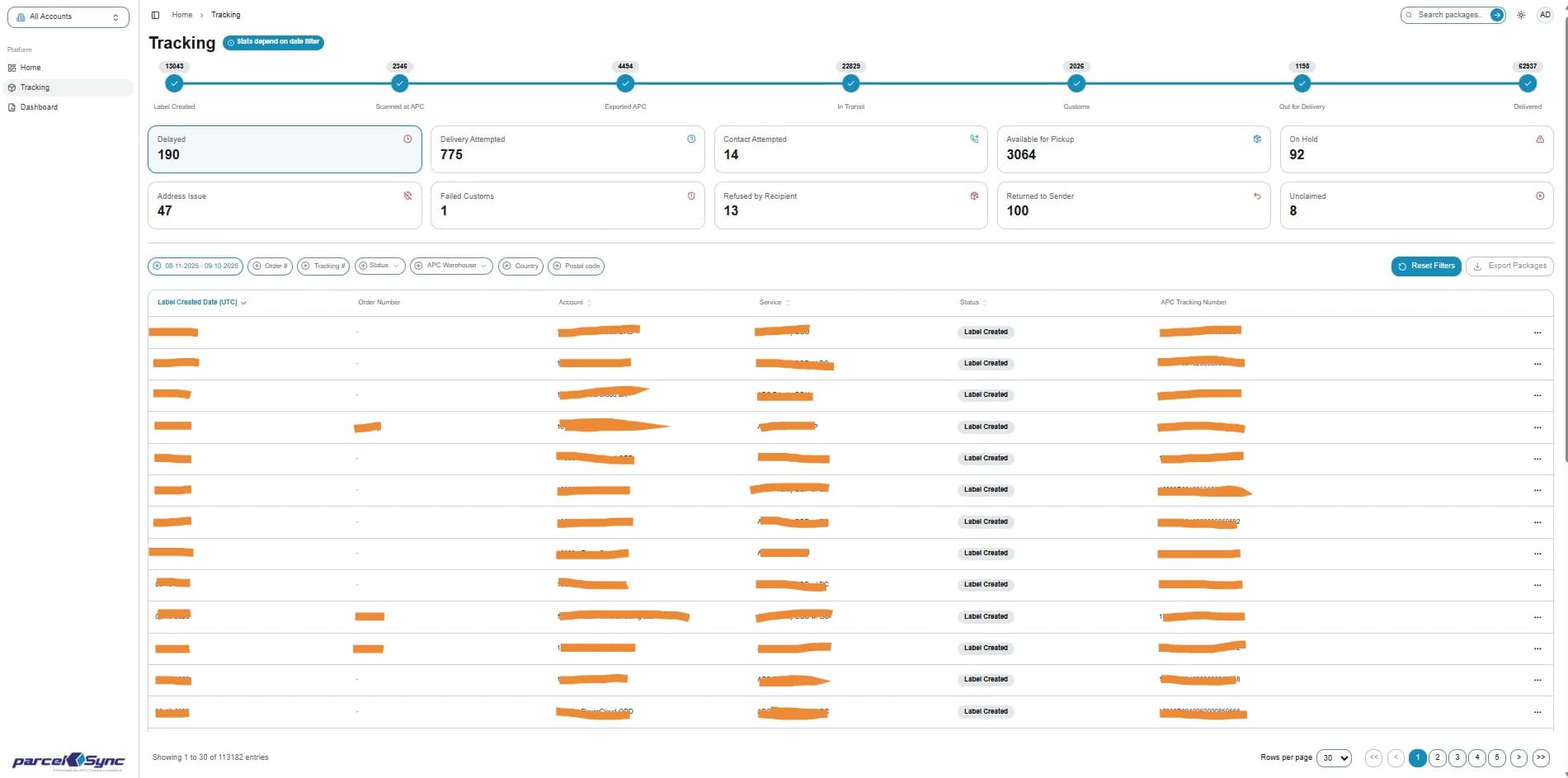
3. Example of table record count when "Delayed" Exception Widget is selected
4. Example of table status when "Delayed" Exception Widget is selected
5. To return to default table filters, click on "Rest Filters"