Updating User Permissions via the Action Panel
This guide will walk you through the process of updating user permissions in the action panel.
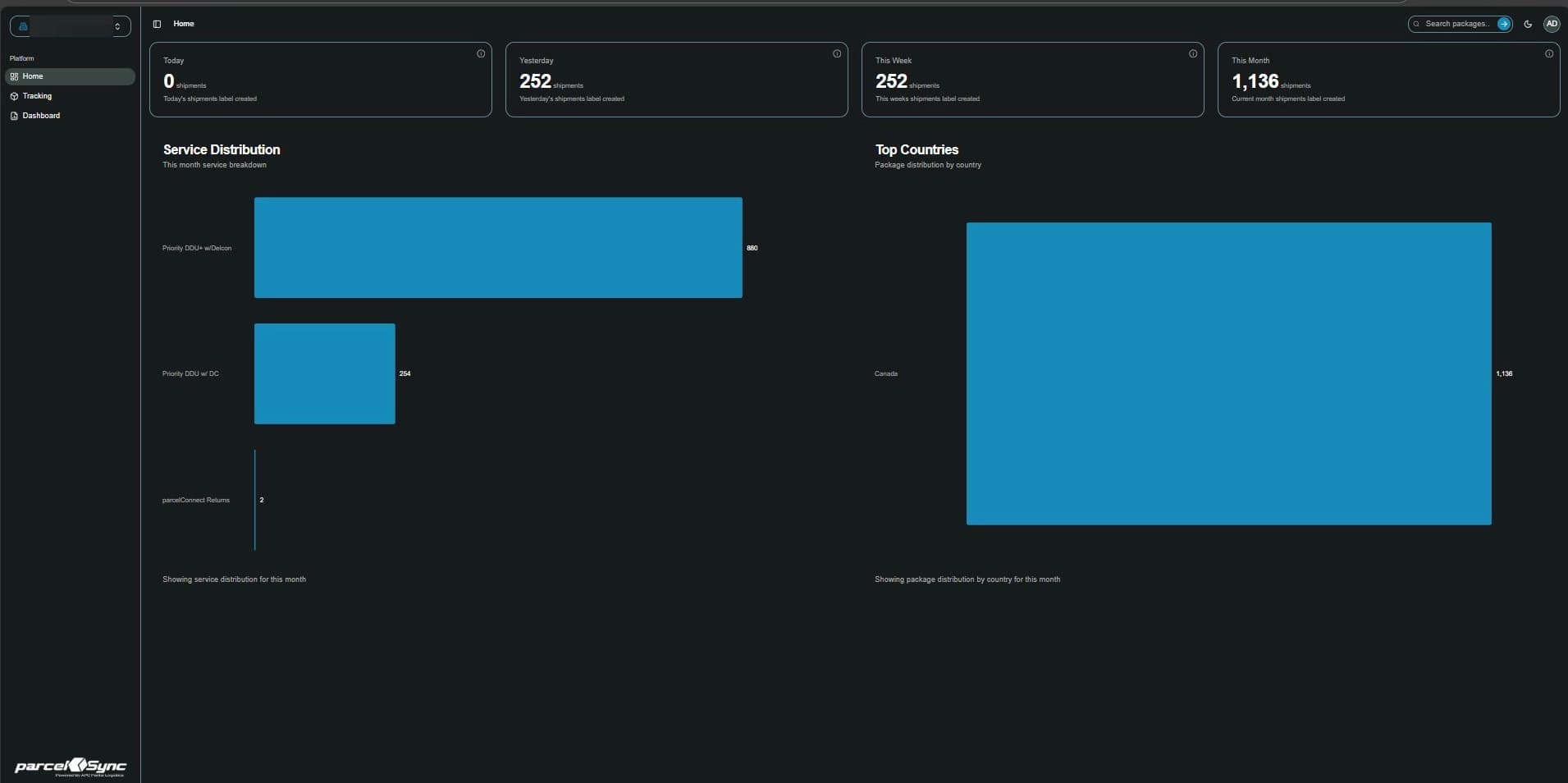
1. Open the initials menu
Log in to parcelSync. Once logged in, click on your user initials in the top right corner of the screen.
2. From the dropdown menu, select "Settings"
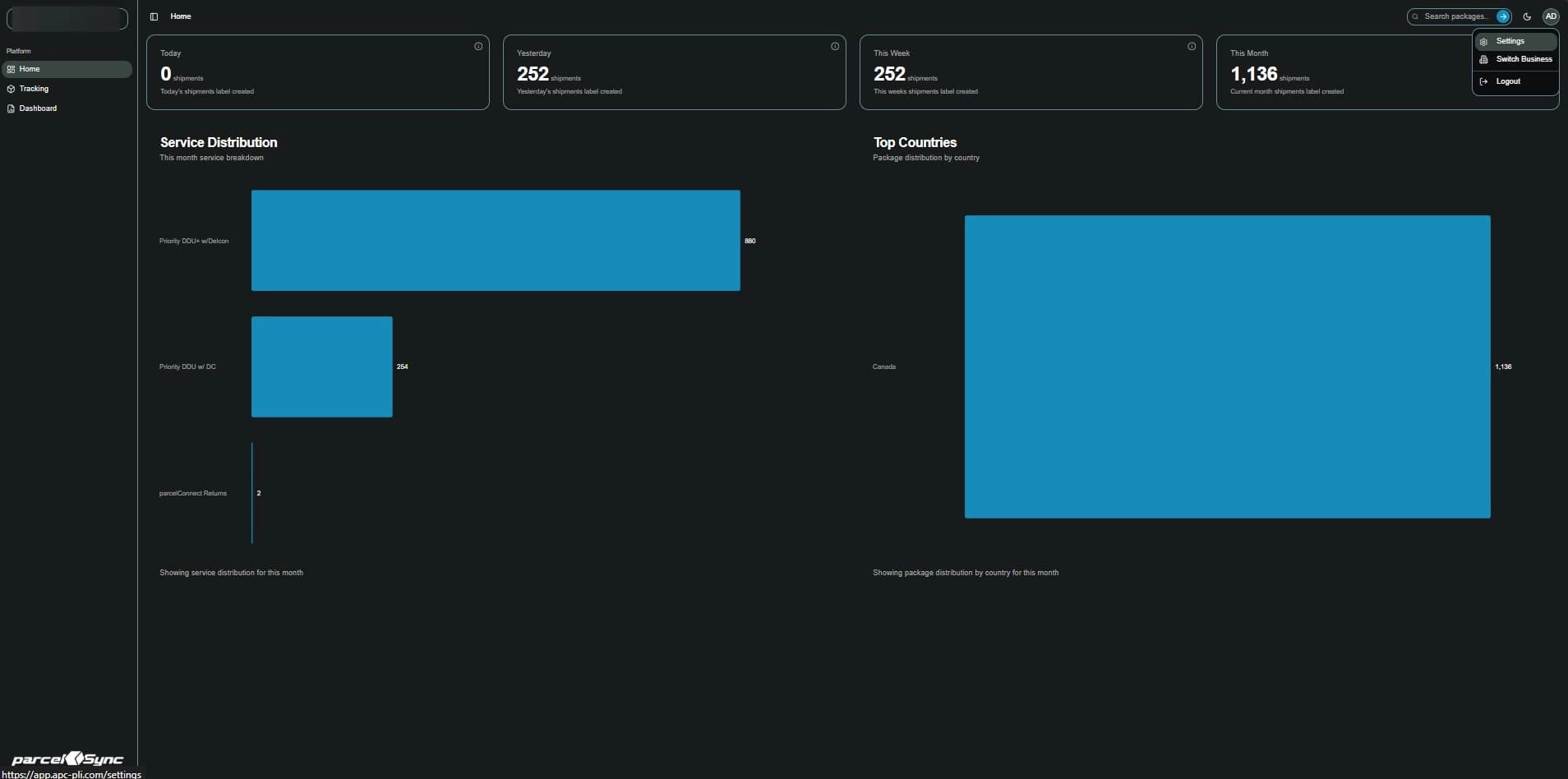
3.In the Settings menu, click "Business Settings"
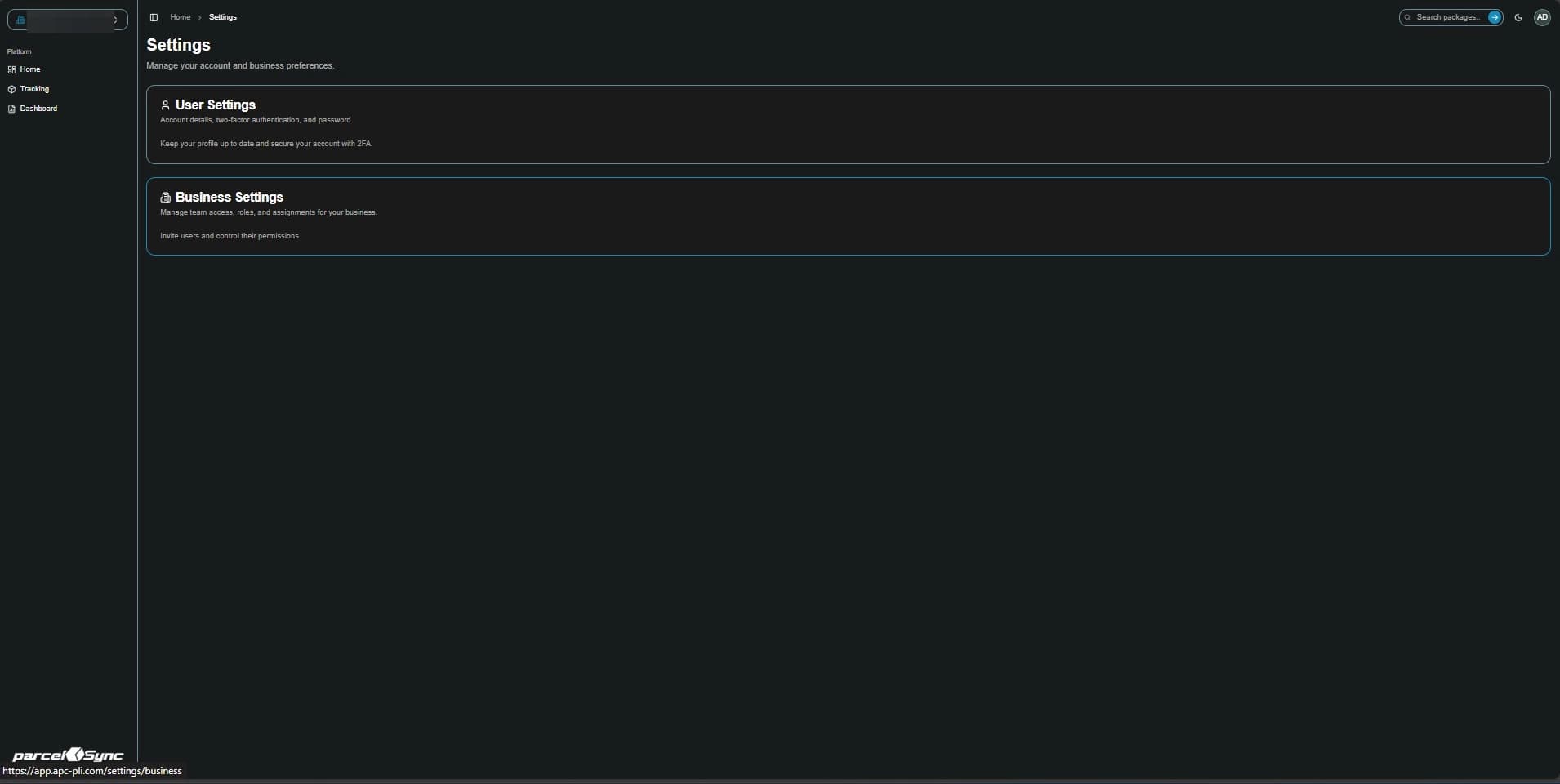
4. Click this on the pencil icon under "Action" for the desired user
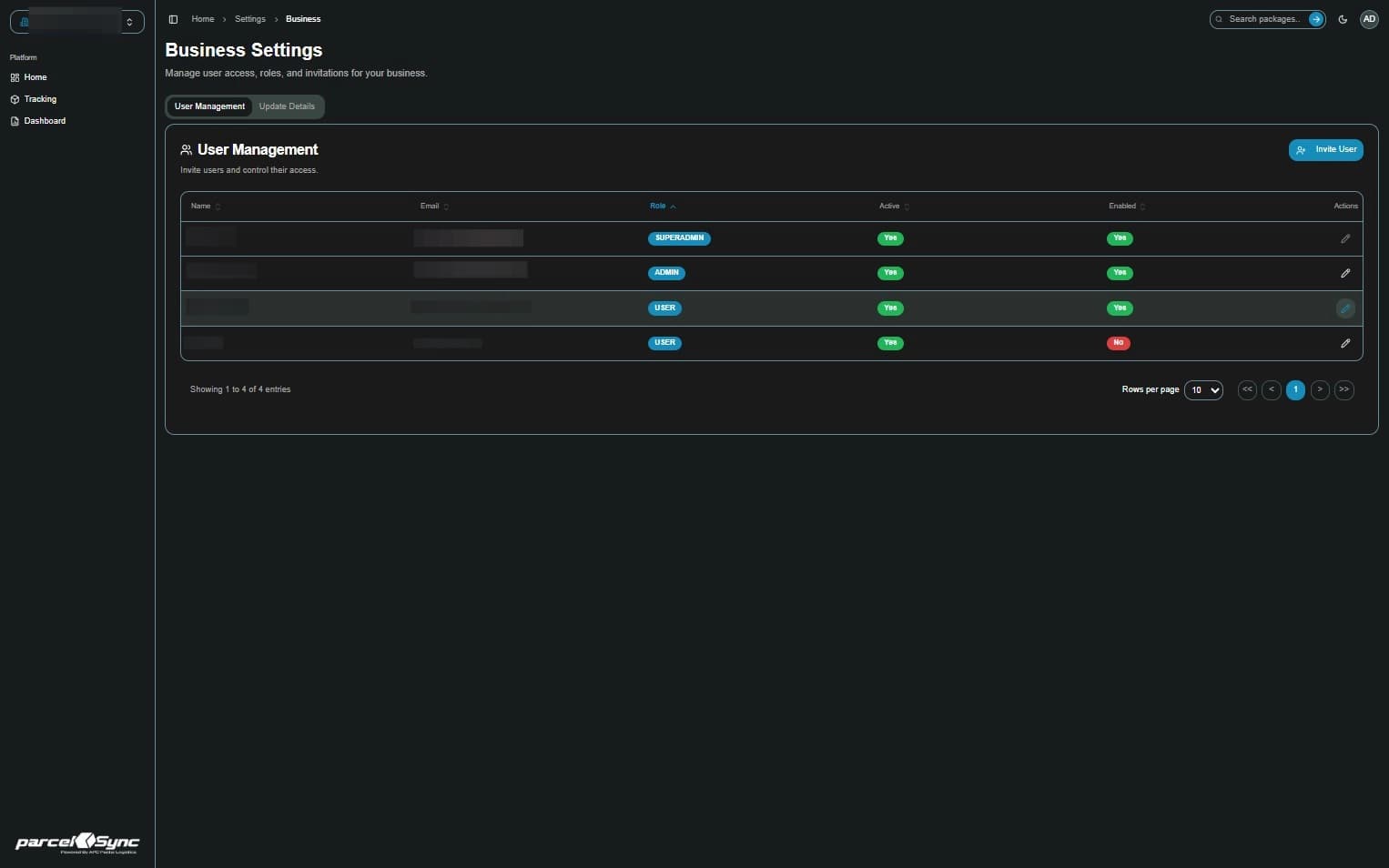
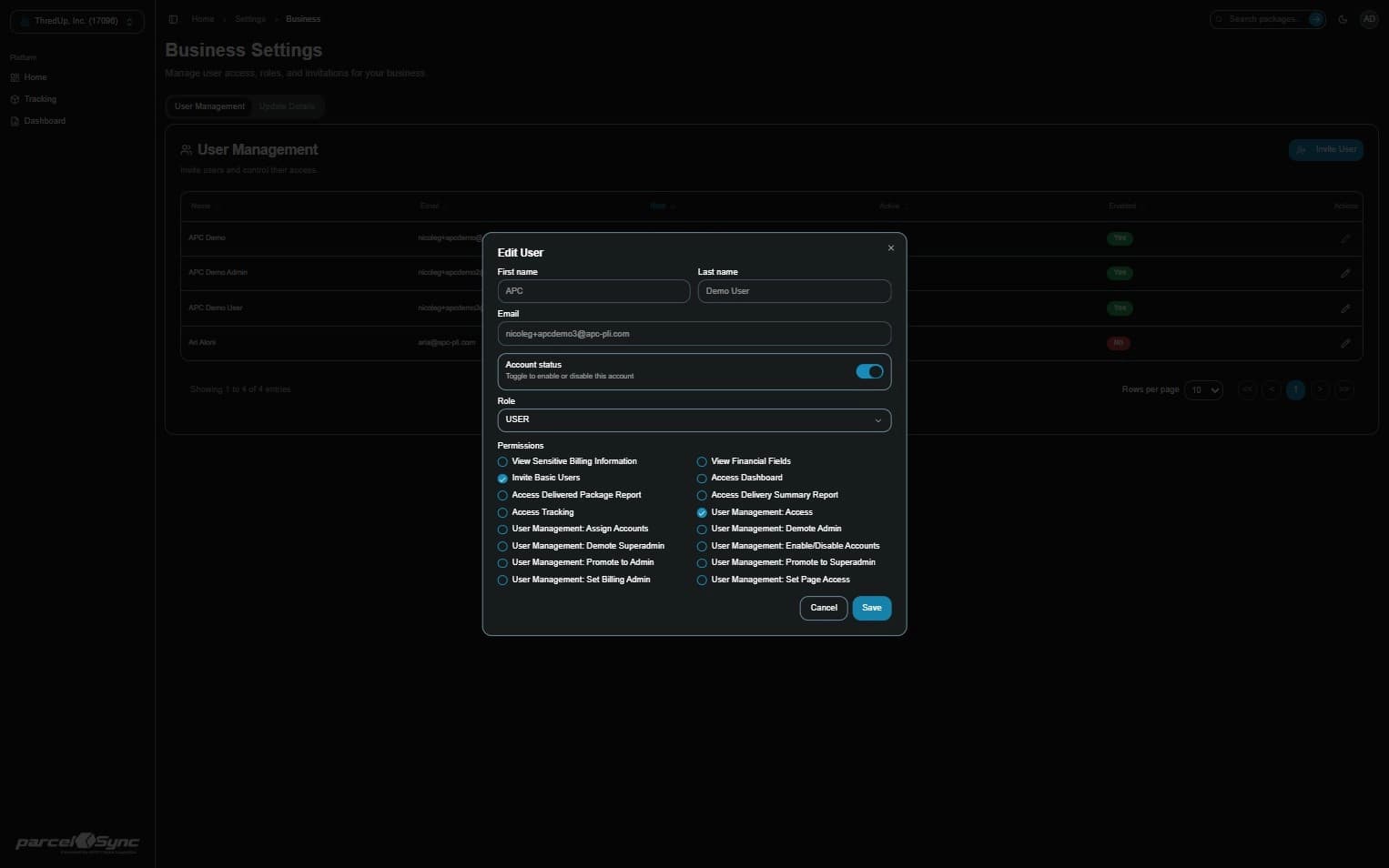
5. Updating the user
- Use the action panel to:
- Enable/Disable ccount status
- Change user role (Super Admin, Admin, User)
- Assign or remove accounts
- Toggle page-level access (Dashboard, Tracking, Financial Data)
- Update financial visibility
- Set user management permissions (i.e. promote/demote roles, set Billing Admin)
- Click "Save" when done. Updates take effect immediately