Navigating the Delivery Summary Report
This guide will help you get to know how to navigate the delivery summary reports.
1. Navigate to the Dashboard page https://app.apc-pli.com/dashboard
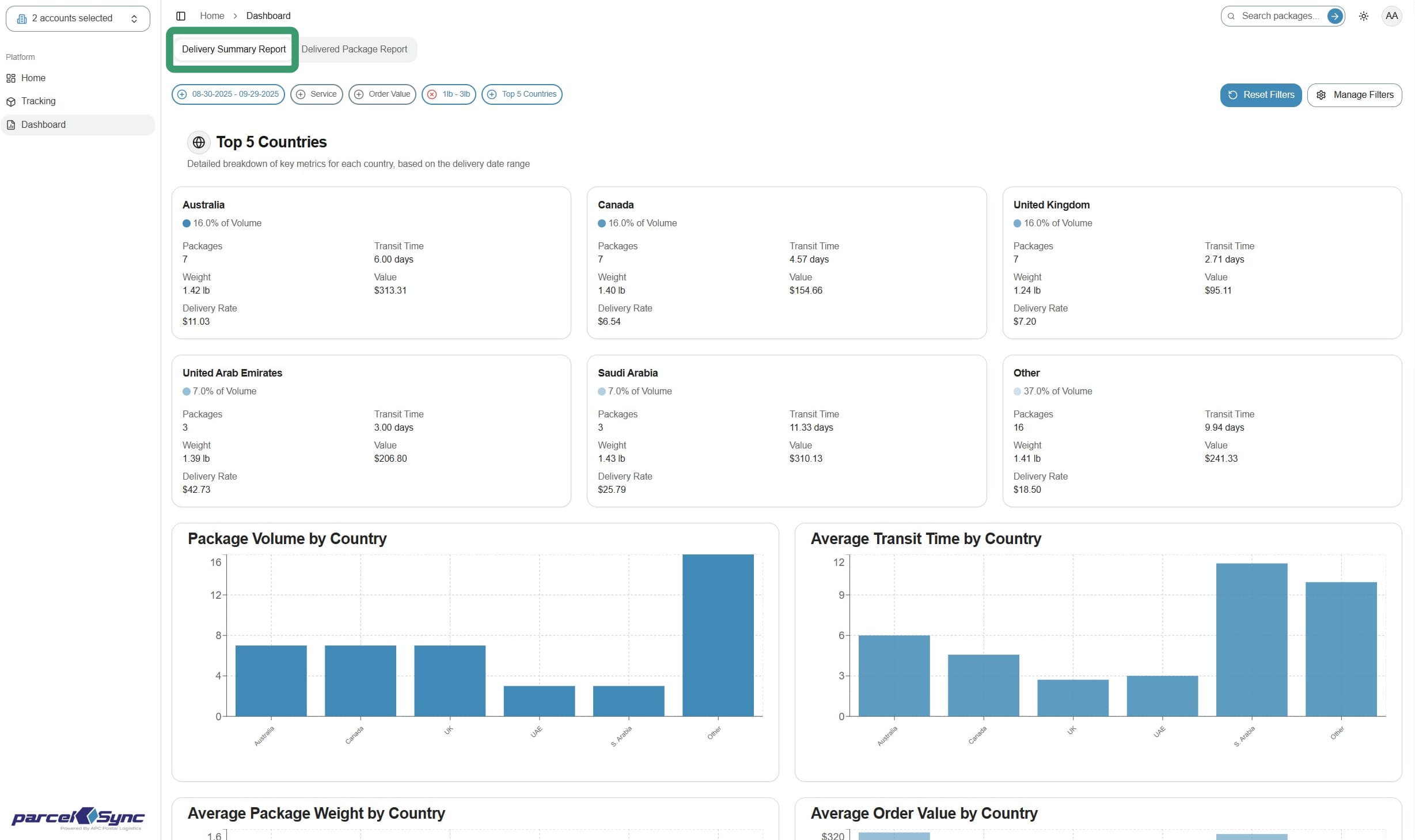
The Delivery Summary Report opens by default with the top tab highlighted in white
2. Using the filters
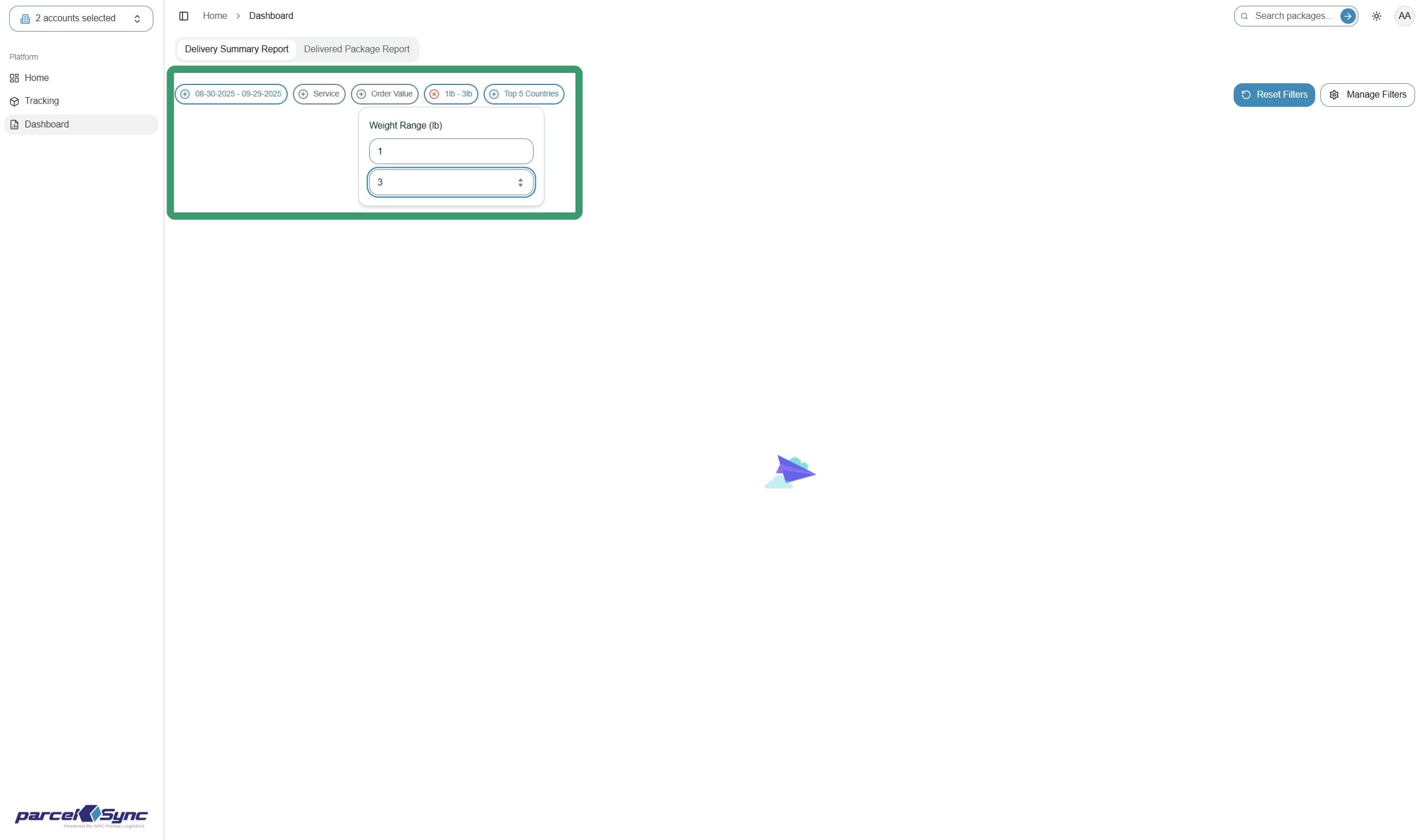
Use the filters at the top of the page (Delivery Date, Service, Order Value, Package Weight, & Country)
Note: Order Value & Package Weight filters allow you to set minimum and maximum values
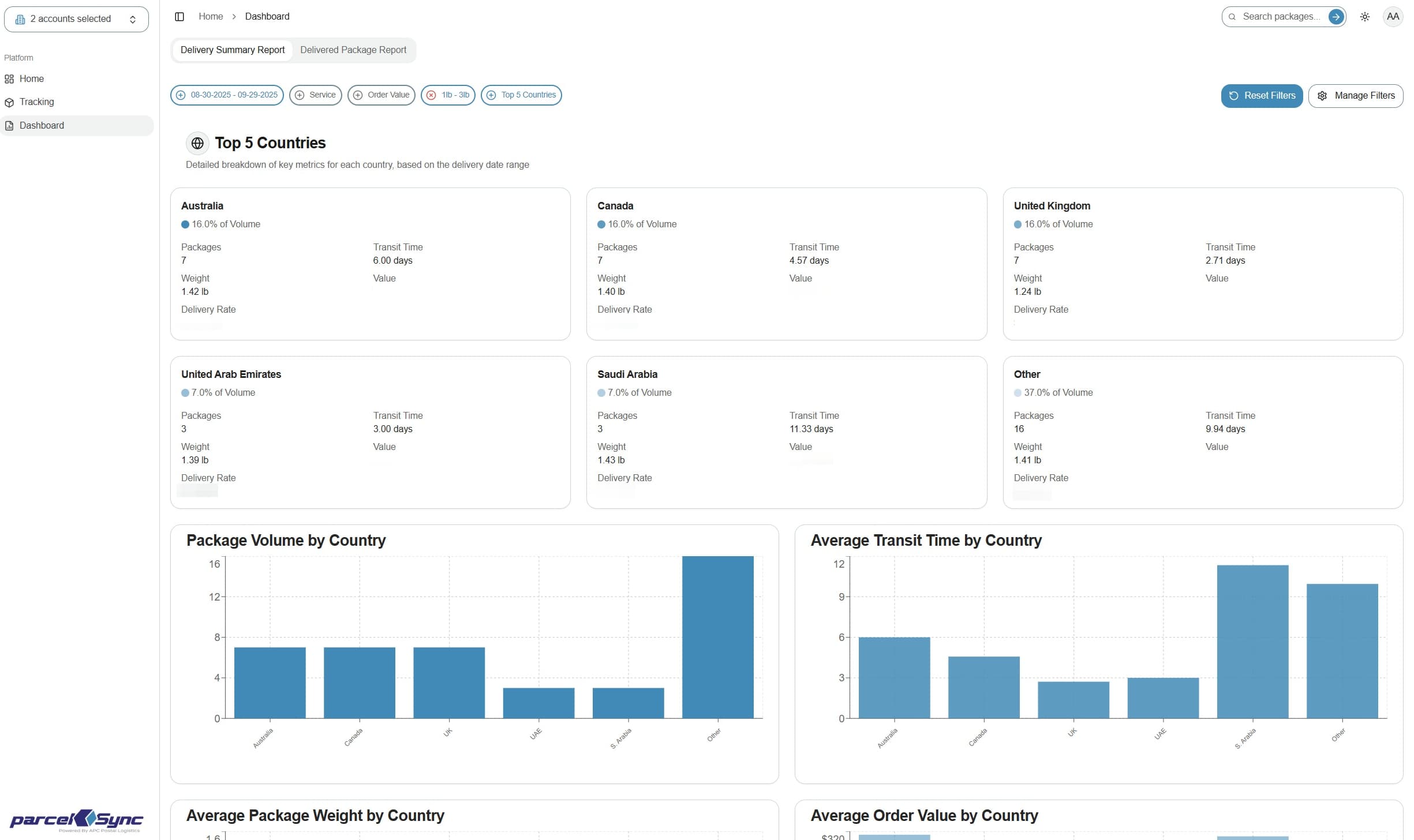
Note: Filters automatically update the metric cards, bar charts, and data on the page
3. Updated country-specific cards, bar charts, and data display
4. Scroll down to see detailed metrics by country and service type
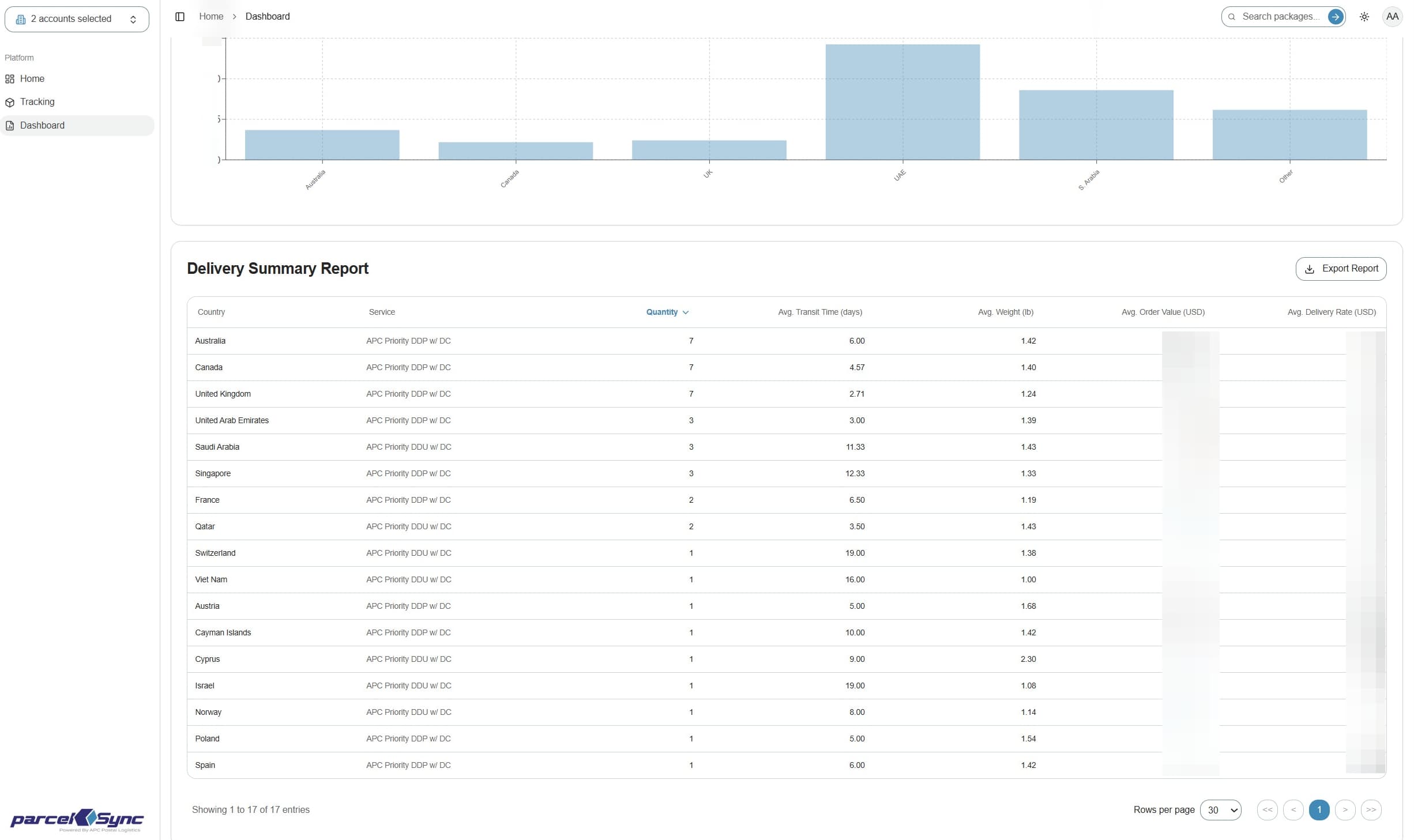
5. Exporting reports
Click "Export Report" above the table to download the Delivery Summary Report with applied filters.
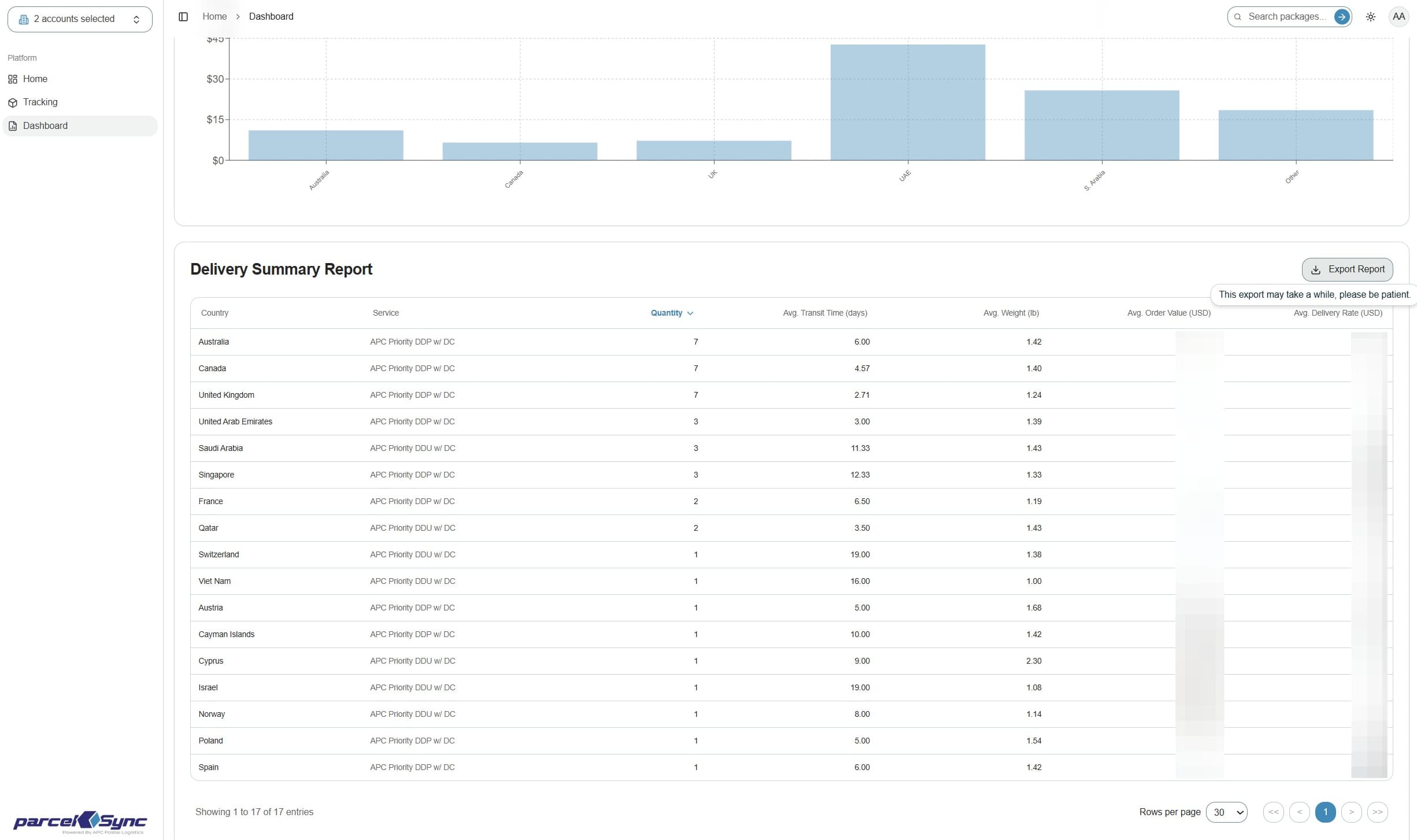
Notes:
- Filters are interchangeable across the Dashboard. Any filter applied here will also carry over to the Delivered Package Report, and vice versa.
- Filtering, resetting filters, and exporting data in the Dashboard follow the same mechanics as the Tracking Page. You can reference the Tracking Page visual guides for additional support on these actions.